
Indexer Add-On Documentation

This addon adds a series of blocks that allow you to connect your chests and containers via pipes, giving you easy access to your items without having to open each chest individually
Crafting
Before getting started, we need to create the items. Here are the crafting recipes
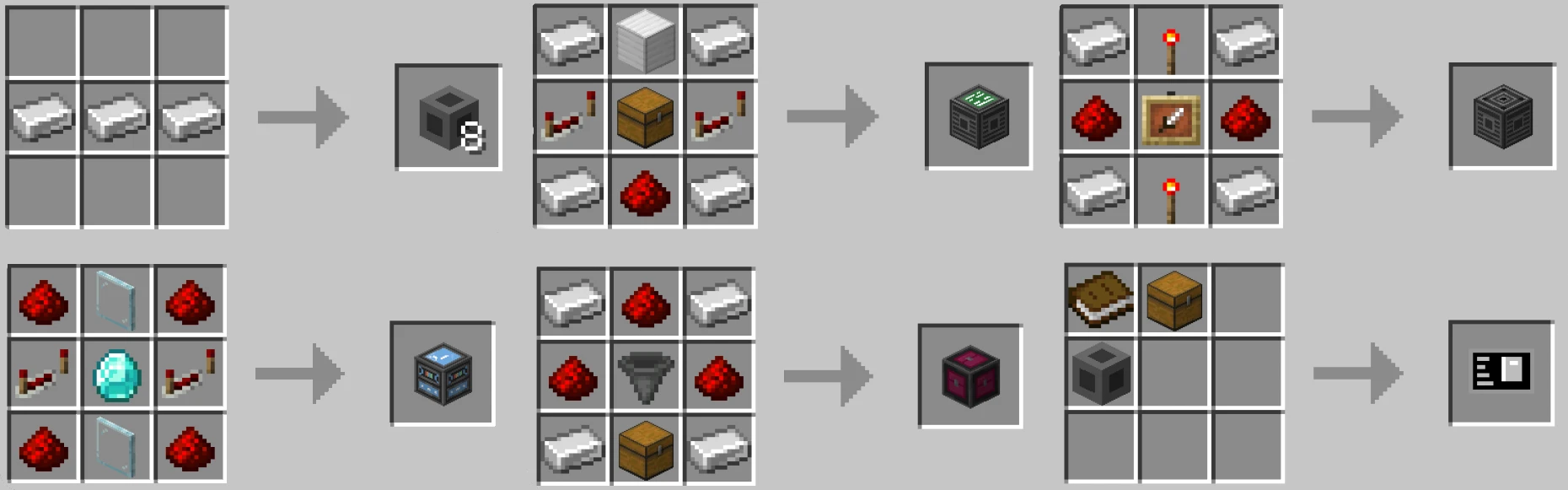
Installation System
Follow these basic steps to correctly install and set up the system in your world.
Structure
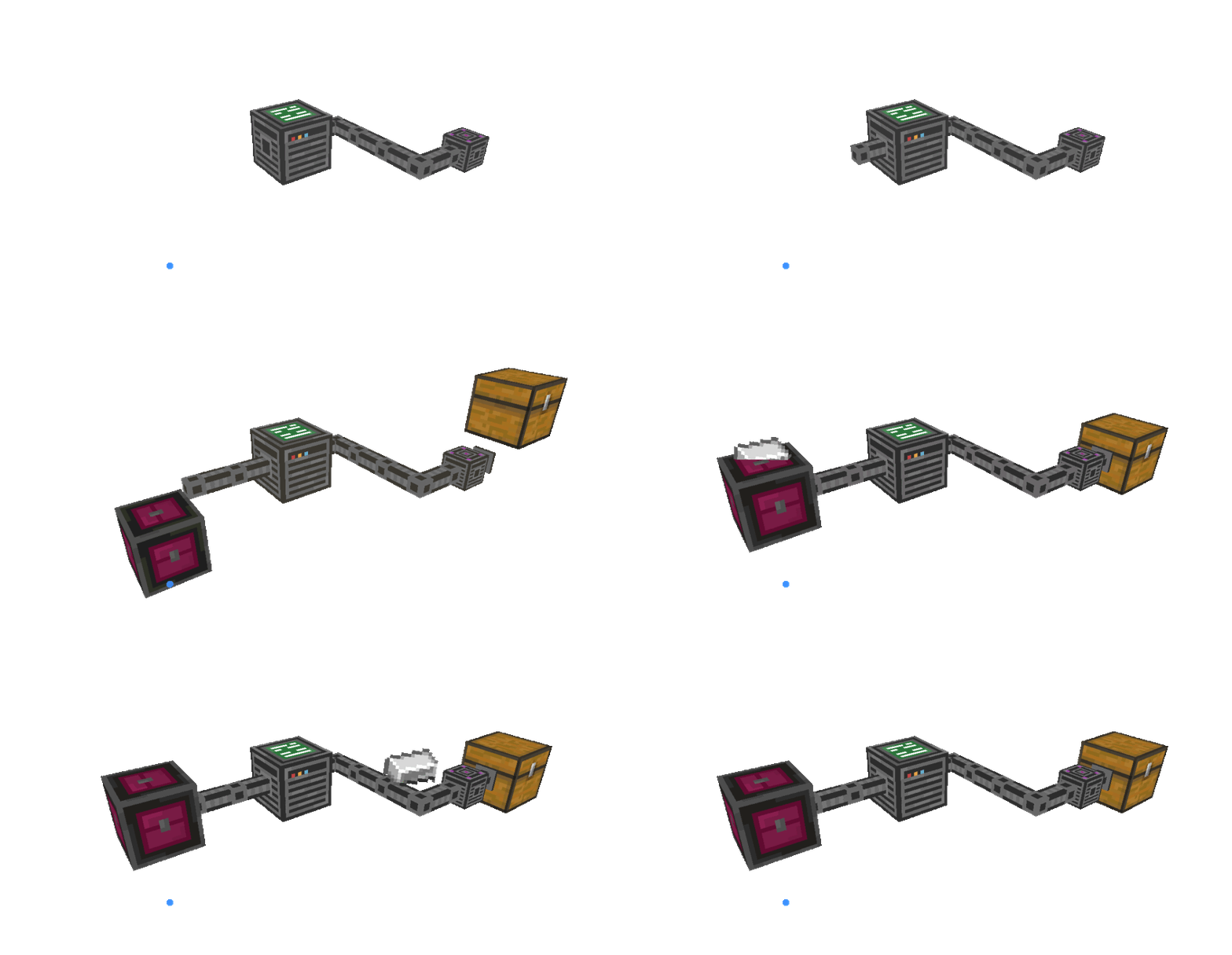
The structure of this system is straightforward: it revolves around the Indexer Controller block, which acts as the system's CPU. You only need one Controller per network, and it must be linked to your containers via pipes to ensure everything is connected and functioning correctly.
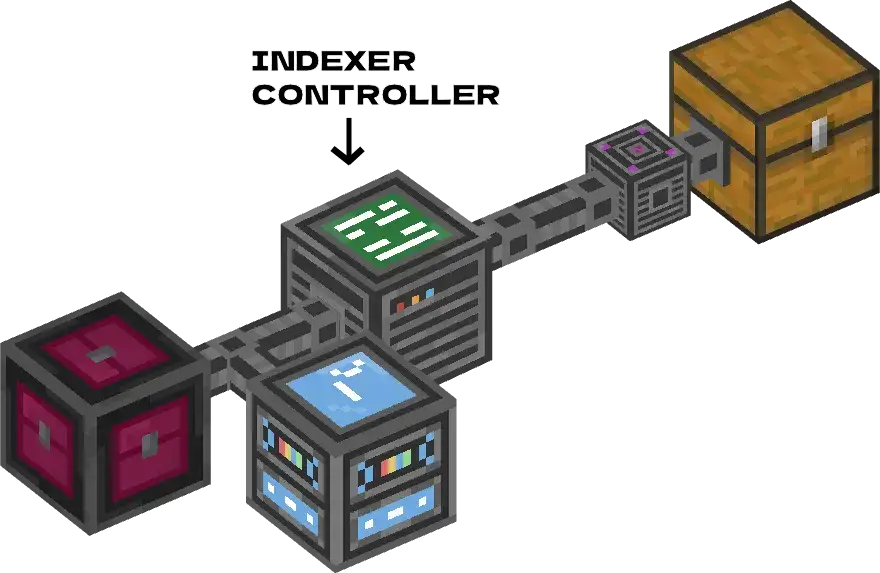
Next, to link your containers or chests to the system, you will need the Connector. Place it directly next to a container to establish a connection. (Note: Only one Connector can be attached per chest).
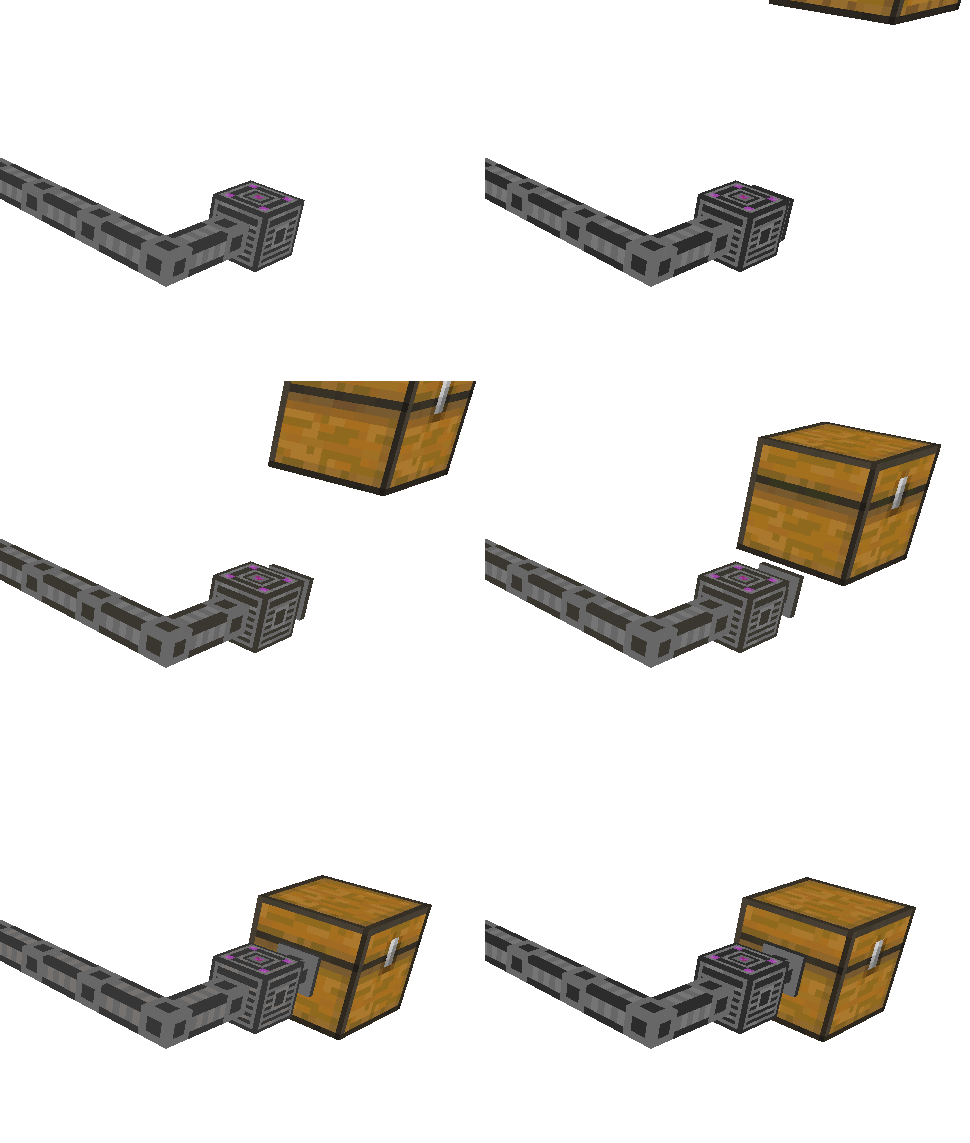
Once the Connector is in place, you must link it using Pipes. Extend the pipes until they reach the Indexer Controller or connect them to an existing pipe network that is already linked to the Controller.
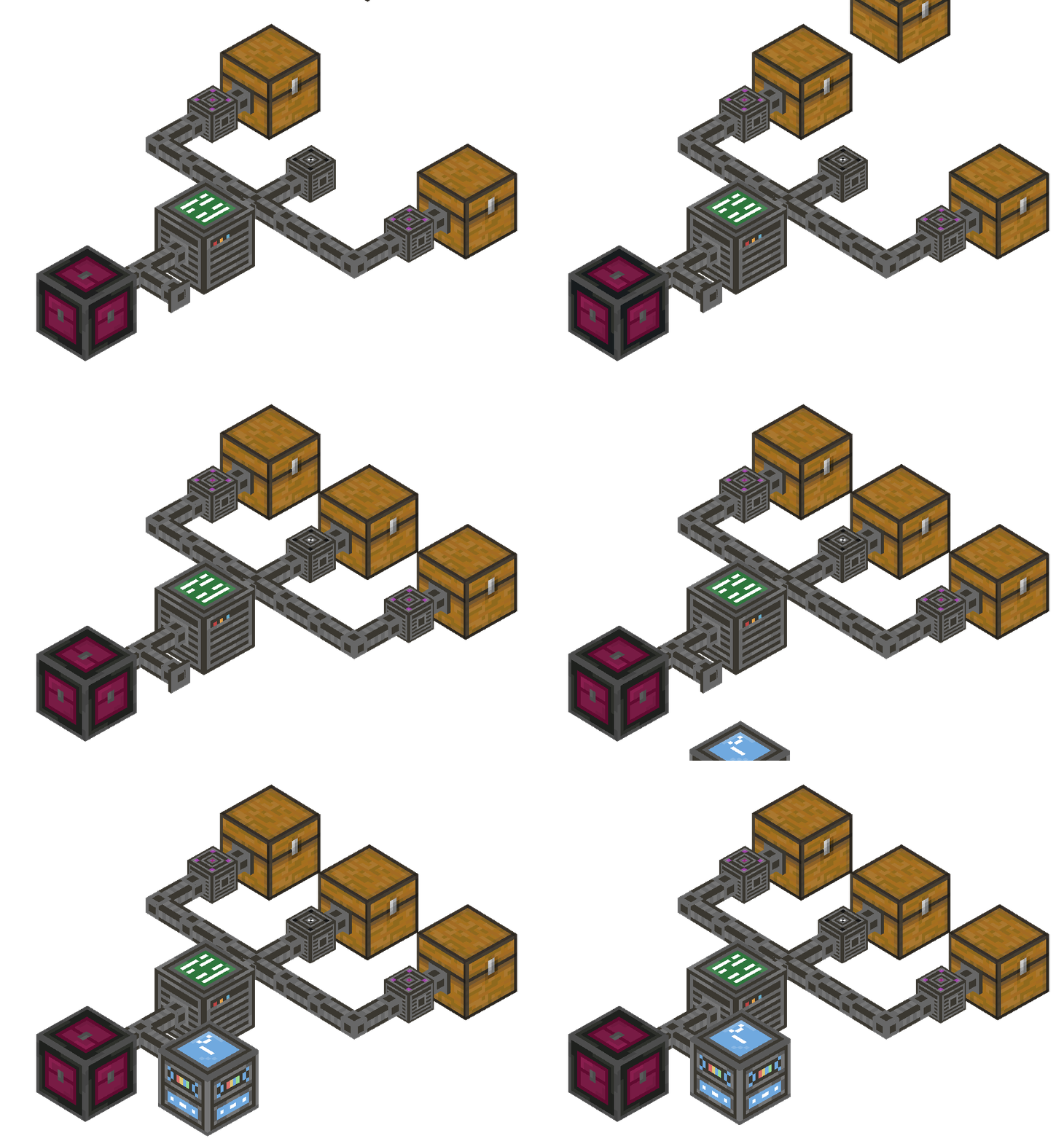
System Input and Output
There are two blocks in this system:
- Indexer Dropbox input
- Indexer Manager output
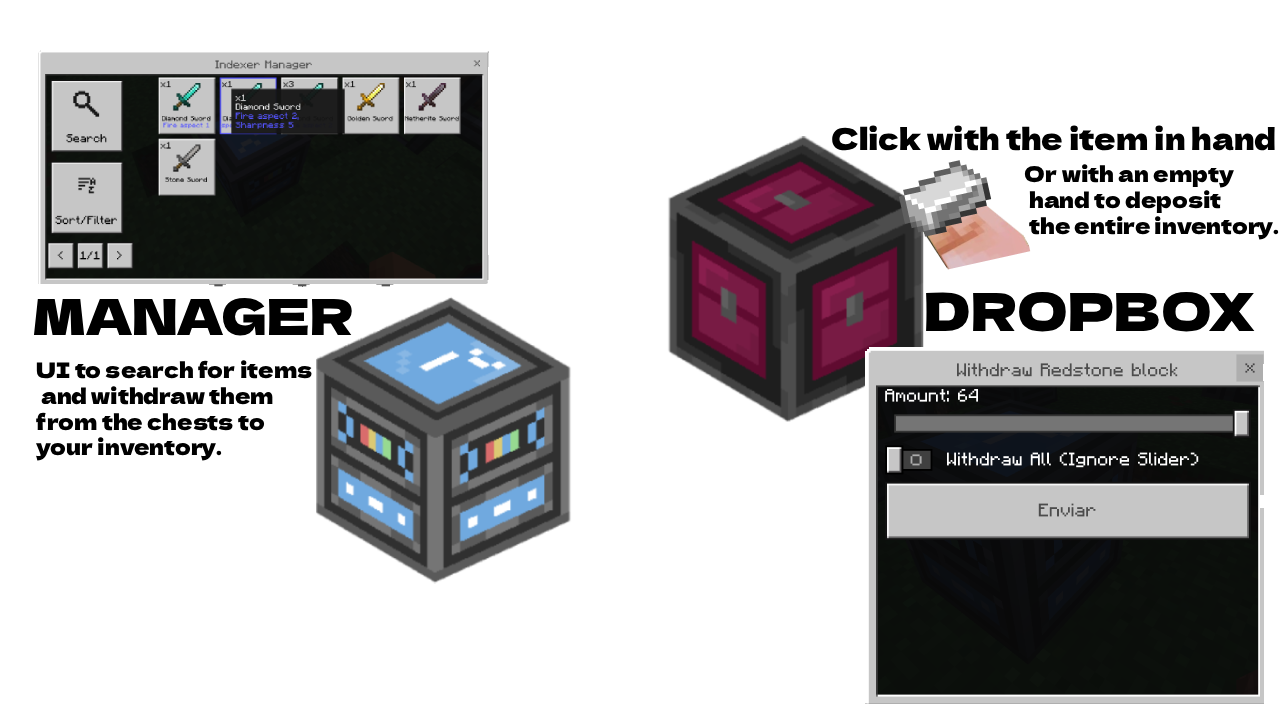
The operation is simple: when you right-click the Dropbox with an item in your hand, a UI will appear allowing you to select the amount of that item you want to deposit into the chests.
When you click the Indexer Manager, it will open a UI displaying all items stored in the chests, provided they are correctly connected. You can then select and retrieve any amount you want into your inventory, as long as you have enough space
UI MANAGER
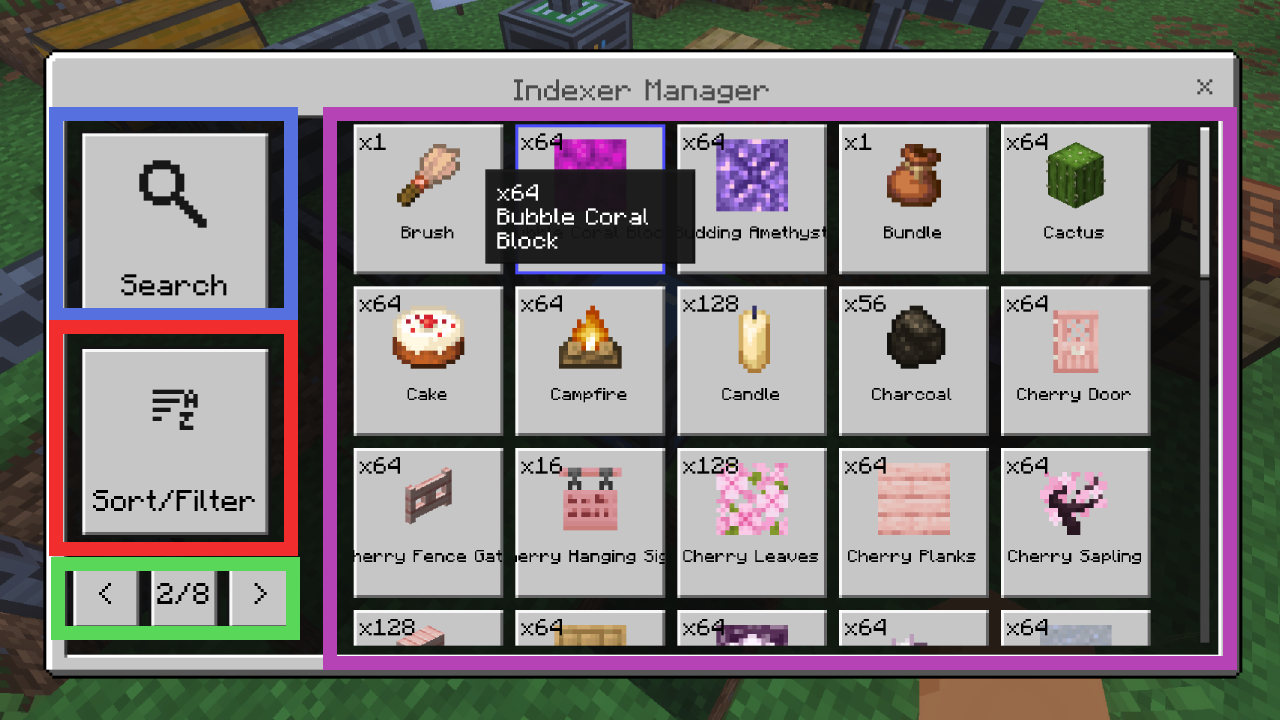
Indexer Manager UI Overview
The Indexer Manager interface is designed for easy navigation and item management:
- Item Grid (Right Side - Purple): Displays all stored items in a grid. A scrollbar will appear if needed, and items will be organized into pages if the inventory is large.
- Search Button (Left Side - Blue): Allows you to filter items by their specific name.
- Sort/Filter Button (Left Side - Red): Used to sort your items by quantity (highest to lowest), alphabetical order, and more.
- Pagination & Page Indicator (Bottom Left - Green): Use the arrows to move between pages or click the "2/8" indicator to jump directly to a specific page number.
Controller UI
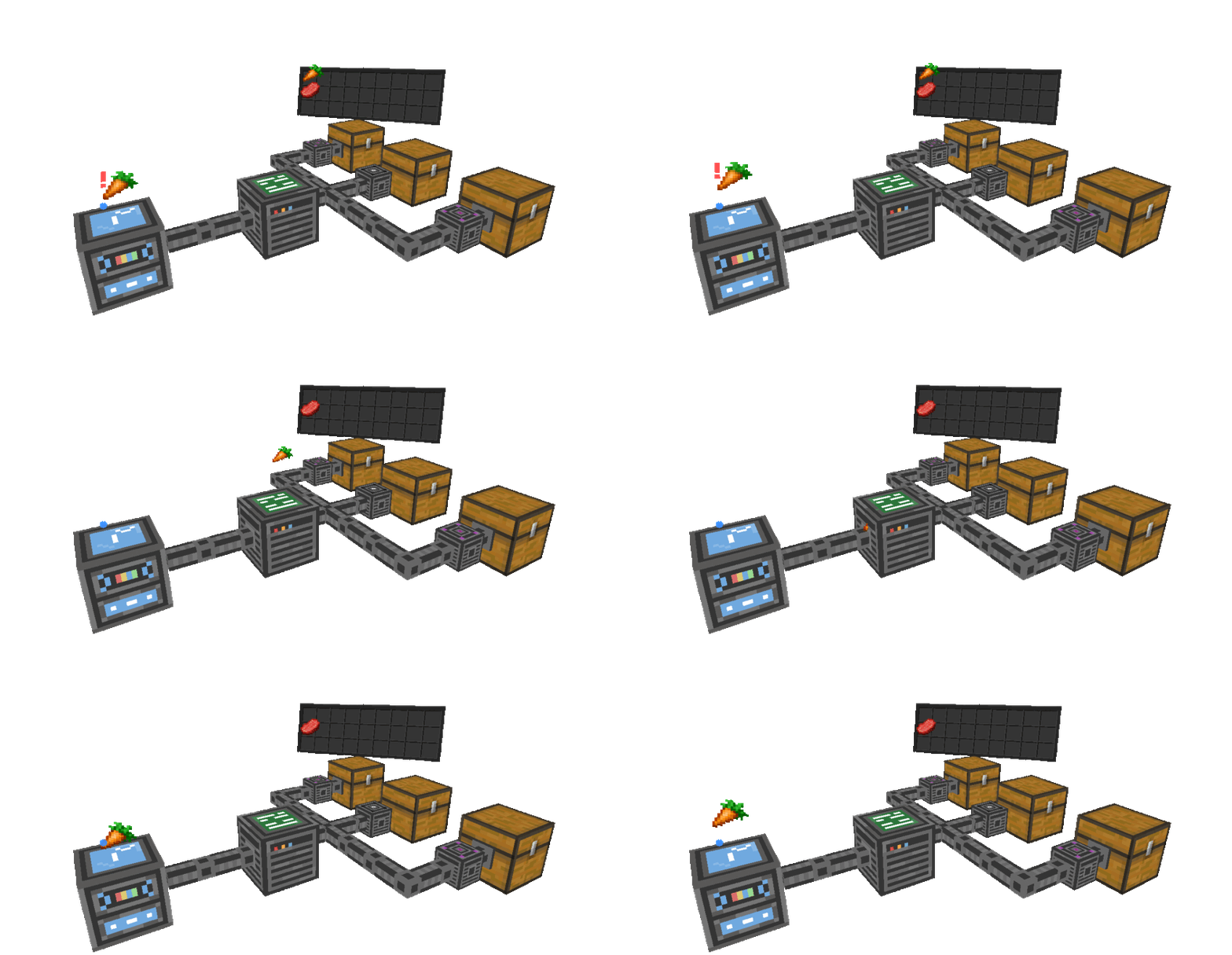
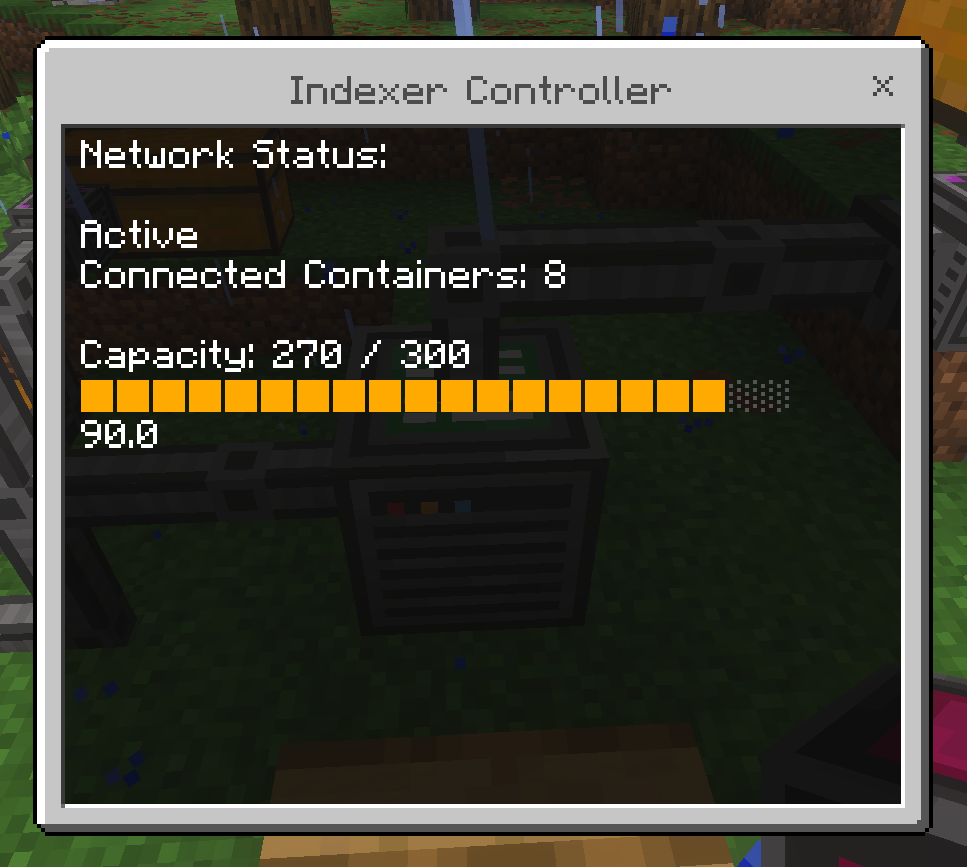
This is a simple UI that displays the connected containers and their capacity in a visual graph.
Frequently Asked Questions (FAQ)
Common Questions about the Indexer System
-
Can I connect multiple Controllers?
No, you only need one Indexer Controller per network. All pipes and connectors must lead back to a single "CPU" to function correctly. -
What happens if a chest is not showing in the UI?
Ensure that the Connector is placed directly touching the container and that there is a continuous line of Pipes connecting it to the Controller. -
Is there a limit to how many containers I can connect?
The system can handle a large number of containers, but you can check the Controller UI to see the total capacity and connected units in a visual graph. -
How do I quickly deposit all my items?
Simply interact with the Indexer Dropbox with an empty hand, and it will automatically deposit your entire inventory into the connected chests. -
Does it work with modded chests?
As long as the block is recognized as a standard container, the Connector should be able to link it to the piping system. -
The UI does not look right (items are not in columns/grid):
This usually happens if the Resource Pack is not installed correctly or is missing. Make sure the Resource Pack is active in your world settings to see the custom UI properly. -
Do I need both packs for the Add-on to work?
Yes, it is strictly necessary to have both the Behavior Pack and the Resource Pack installed and active. The Behavior Pack handles the logic (pipes, controller, storage), while the Resource Pack handles the visual models and the custom interfaces (UI).